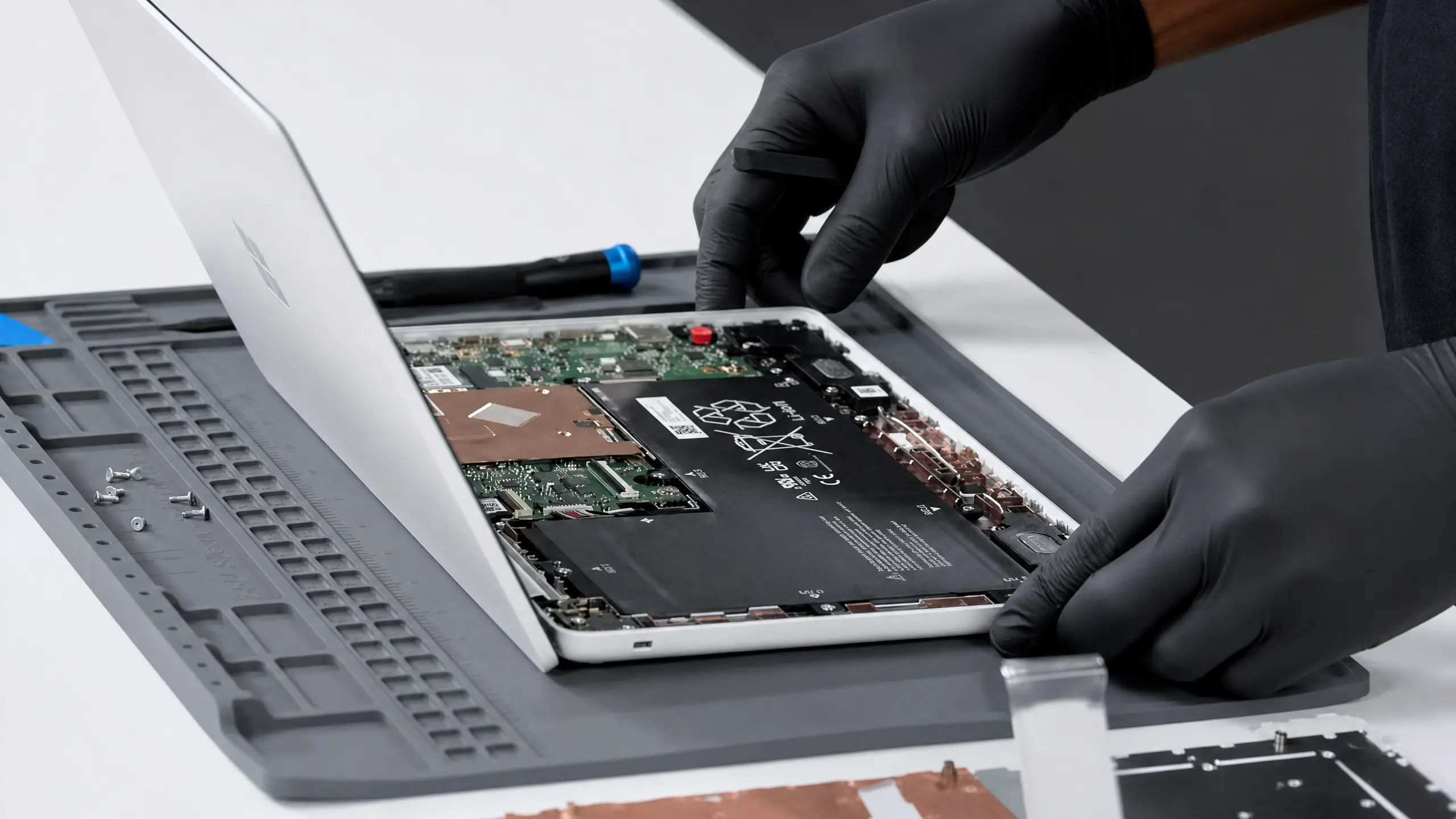



A slow computer usually isn't worn out. More often it's being held back by one or two specific parts, and swapping those can make a machine that takes minutes to start boot in seconds. But upgrades only help if you upgrade the right part, and not every computer can be upgraded at all. This guide covers how to figure out what's actually slowing you down, what each upgrade does, how to check what's in your computer now, which machines can and can't be upgraded, and when a new computer is the smarter buy.
First, Find What's Actually Slowing It Down
Upgrading the wrong part is the most common way people waste money. Before buying anything, check what your computer is struggling with.
On Windows
Open Task Manager (Ctrl+Shift+Esc) and go to the Performance tab while you do whatever feels slow.
- Disk at or near 100% for long stretches: your drive is the bottleneck. If it says "HDD," an SSD will be a huge improvement.
- Memory near full: you're running out of RAM, and the computer is using the much slower drive to make up for it.
- CPU pinned at 100%: the processor is maxed out. This can be a real limit, or a background program or malware.
- GPU maxed during games: the graphics card is the limit.
The Memory section also shows how many RAM slots are used, and the Disk section shows whether each drive is an SSD or HDD.
On a Mac
Open Activity Monitor and look at the Memory tab. If Memory Pressure is often yellow or red, you're short on RAM. Click the Apple menu and choose About This Mac to see your chip, memory and model year.
The Upgrades, Explained
If your computer still has a spinning hard drive, this is the biggest upgrade most computers will ever get. Startup, opening programs, searching files and installing updates all get dramatically faster. Your files and programs can be moved over to the new drive.
Memory is your computer's workspace. When it fills up, the computer starts using the drive as overflow, which is far slower. If you keep a lot of browser tabs open, switch between programs often, or work with large files, more RAM fixes the freezing and stuttering.
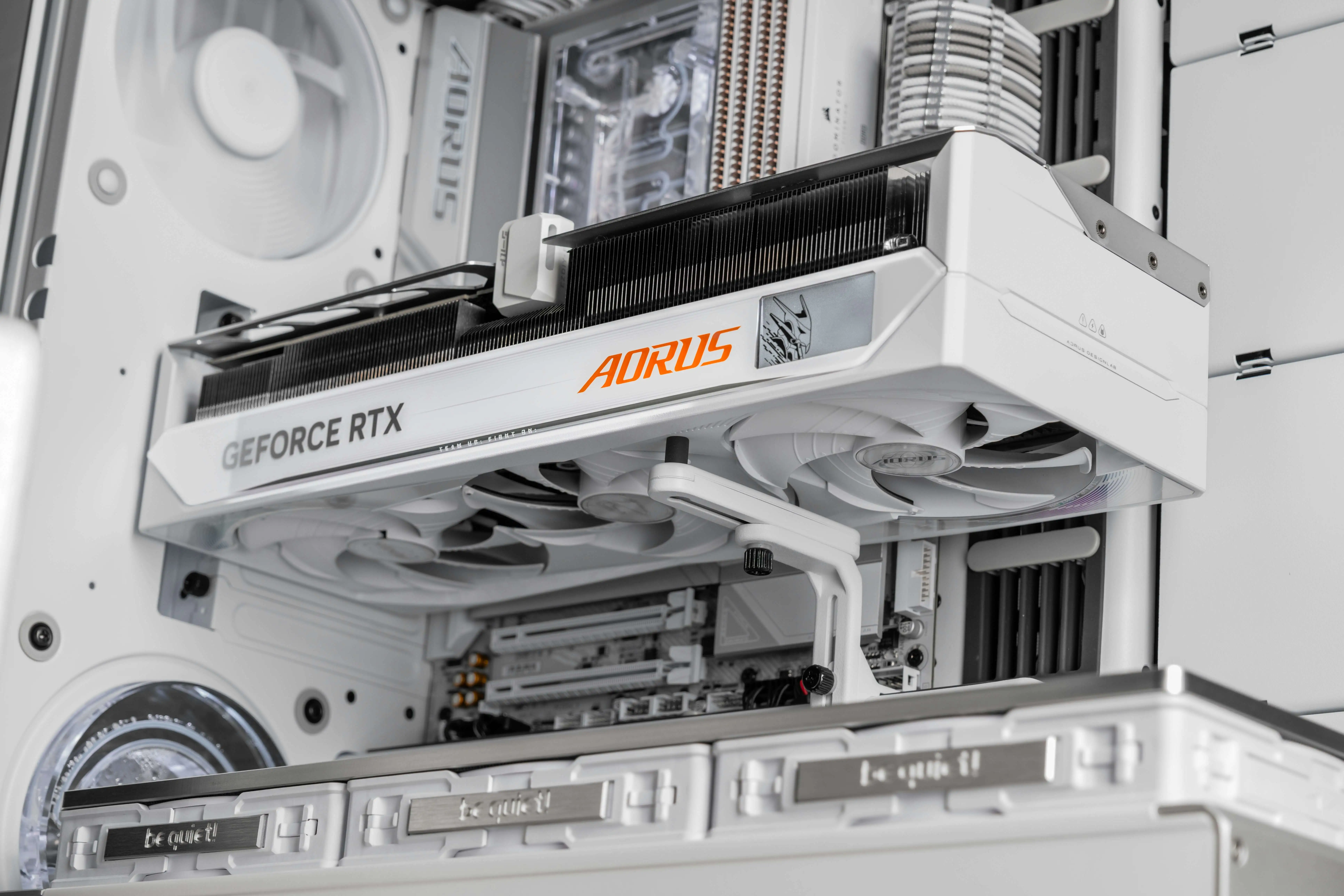
For desktops used for gaming, editing, 3D or AI tools. Higher frame rates, higher settings, more monitors and faster rendering. The power supply and case have to be able to handle it.
Needed when a new graphics card draws more power than the old supply can deliver, or when an old unit is failing. A quality supply also protects every other part.
A better CPU cooler and case fans keep a desktop quieter and stop it from slowing itself down under heat. Often paired with other upgrades.
Possible on many desktops if the new CPU uses the same socket as the motherboard, sometimes with a BIOS update first. On laptops, the CPU is almost always soldered and can't be changed.
SSDs in More Detail
Not every SSD fits every computer. There are a few main types:
| Type | What it looks like | Where it's used |
|---|---|---|
| 2.5" SATA SSD | Same size as a laptop hard drive | Replaces hard drives in older laptops and desktops |
| M.2 SATA | A small stick | Some laptops and desktops from the mid-2010s |
| M.2 NVMe | A small stick, much faster | Most computers made in recent years |
NVMe drives come in several generations, and newer ones are faster. But the biggest jump by far is going from a hard drive to any SSD. Going from one fast SSD to a slightly faster one is barely noticeable in everyday use.
Cloning vs a fresh install
When you upgrade to an SSD, there are two options:
- Moving everything over (cloning): your files, programs and settings come along, and the computer works just like before, only faster.
- A fresh install: a clean copy of the operating system, then your files are copied back. It can clear out years of clutter, but you'll need to reinstall your programs.
Both are good options. Which one makes sense depends on how cluttered the computer is and how many programs you rely on.
RAM in More Detail
- RAM generations don't mix. DDR3, DDR4 and DDR5 are physically different and only work in computers built for them.
- Laptops and desktops use different sizes. Laptops use smaller modules than desktops.
- Two matched sticks beat one. Running in pairs, called dual-channel, is noticeably faster than a single stick of the same total size.
- Some laptops have memory soldered to the board, sometimes with one open slot and sometimes with none.
- How much you need depends on how you work. Everyday browsing and email need less. Lots of tabs, editing, gaming and running many programs at once need more.
Graphics Card Upgrades: What to Check
- Power supply
The power supply needs enough wattage and the right power connectors for the new card. Many office desktops from big brands have small power supplies that can't run a modern graphics card.
- Physical size
Modern graphics cards are long and thick. The case has to fit it, and in small office desktops it often won't.
- The rest of the system
A very old processor can hold back a new graphics card, especially in games that lean on the CPU.
- Your monitor
There's no point paying for frame rates your monitor can't display, or a 4K-class card on a 1080p screen.
Which Computers Can Be Upgraded?
- Most desktop towers
- Custom-built PCs
- Many gaming laptops (RAM and storage)
- Many business laptops with open slots
- Some older Intel MacBooks and iMacs
- 27-inch Intel iMacs (RAM)
- Apple silicon Macs (M1 and newer)
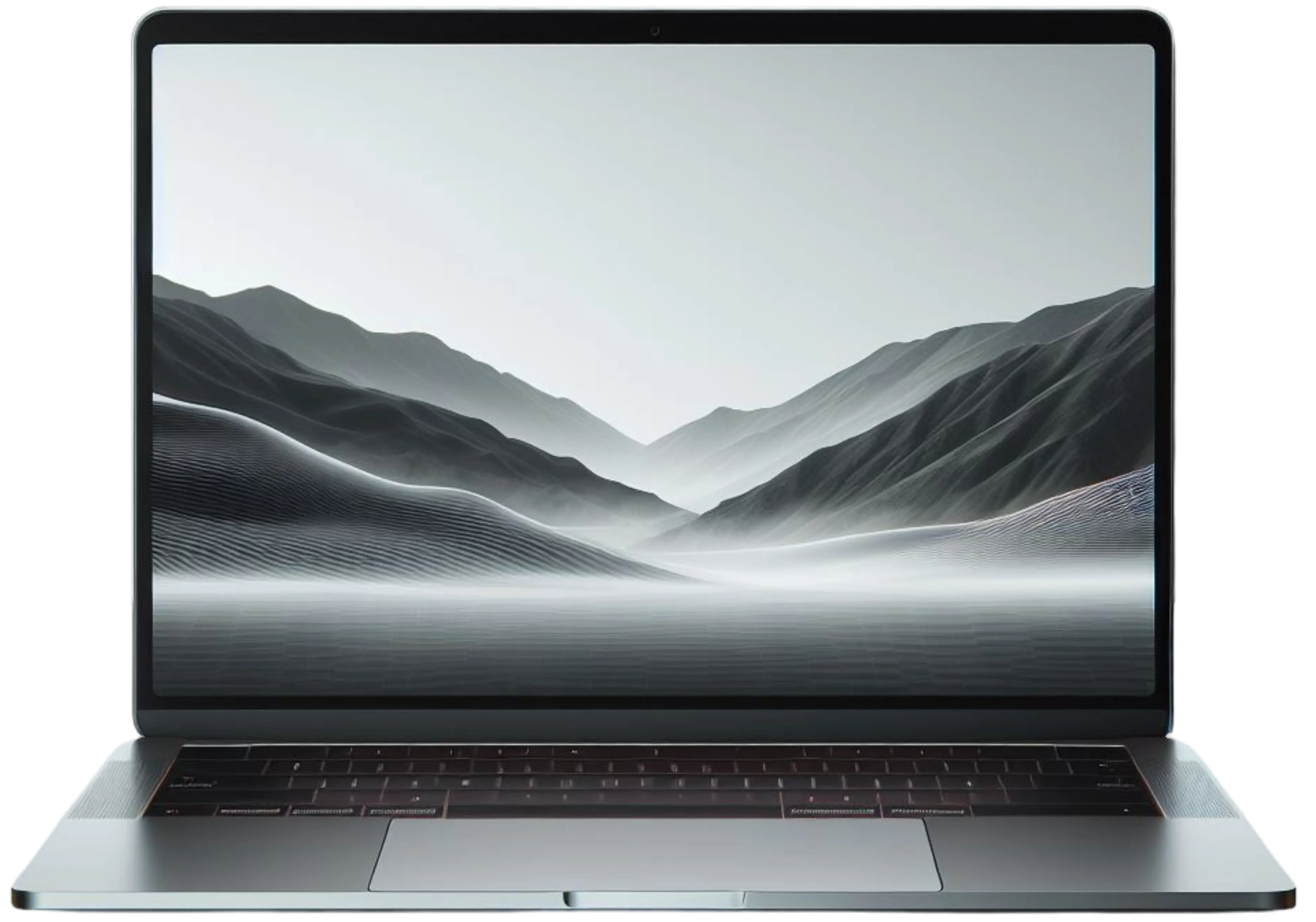
- Thin laptops with soldered memory and storage
- Many all-in-ones
- Tablets and 2-in-1s
- Small office desktops (graphics cards)
- Very old machines where parts are no longer made
Desktops are the easiest to upgrade because they use standard parts. Laptops vary a lot between models, even from the same brand. Apple silicon Macs have memory built into the chip and storage soldered to the board, so they can't be upgraded after purchase. Some older Intel Macs can take more RAM or a faster drive, depending on the exact model and year.
The Windows 11 Question
Microsoft ended support for Windows 10 in October 2025, which means no more security updates for it. Windows 11 has stricter requirements, including a supported processor and a security chip called TPM 2.0. If your computer can't run Windows 11, an upgrade like more RAM or an SSD won't change that, because the limit is the processor and motherboard. That's often the point where a new computer makes more sense than upgrading an old one.
Upgrade or Replace: How to Decide
An upgrade usually makes sense when:
- The computer does what you need but has gotten slow
- It still has a spinning hard drive
- It freezes when you have a lot open
- It can run a current, supported operating system
- The rest of the machine is in good shape
A new computer usually makes more sense when:
- It can't be upgraded, like most thin laptops and Apple silicon Macs
- It can't run a supported operating system
- Several parts are failing at the same time
- The upgrade would cost close to a new machine
How a Fixoid Upgrade Works
- We check what your computer can take
Not every machine can be upgraded, and not every part fits. We check your exact model, what's in it now and what it supports.
- We spec the right parts
We pick parts that fit your computer, the way you use it and your budget, with no compatibility surprises.
- We source and install them
We get the parts and install them. For SSD upgrades, we move your files and programs over or set up a fresh install, whichever fits.
- We test it
We make sure everything runs right before you pick it up. Most RAM and SSD upgrades are done same day.
Frequently Asked Questions
Will an SSD really make my computer faster?
If your computer has a spinning hard drive, yes. It's the single biggest speed improvement most older computers can get, especially for startup, opening programs and updates.
Will I lose my files with an SSD upgrade?
No. Your files can be moved over to the new SSD along with your programs and settings, or copied back after a fresh install.
How do I know if my computer has an SSD or a hard drive?
On Windows, open Task Manager, go to the Performance tab and click the disk. It will say SSD or HDD. On a Mac, About This Mac and System Information show your storage type.
How much RAM do I need?
It depends on how you use the computer. Browsing and email need less than gaming, editing or running many programs at once. If Task Manager or Activity Monitor shows memory nearly full during normal use, more will help.
Can I upgrade my MacBook?
Apple silicon MacBooks (M1 and newer) can't be upgraded, because memory and storage are built into the chip and board. Some older Intel MacBooks can be, depending on the model.
Can I put a graphics card in any desktop?
No. The power supply needs enough wattage and the right connectors, and the case needs room for the card. Many small office desktops can't fit or power a modern graphics card.
My computer can't run Windows 11. Should I upgrade it?
Usually not. Windows 11 requirements depend on the processor and motherboard, which RAM and SSD upgrades don't change. That's often the point where replacing the computer makes more sense.
How long does an upgrade take?
Most RAM and SSD upgrades are done same day. Graphics card upgrades depend on whether the card needs to be ordered.