








Laptops are supposed to get warm. They're not supposed to burn your legs, sound like a jet engine, or shut down in the middle of a video call. Overheating is one of the most common laptop problems we see, and it's usually very fixable. To fix it properly, though, it helps to know how a laptop actually keeps itself cool, because the fix depends on which part of that system has stopped working. This guide covers how laptop cooling works, what normal temperatures look like, the real causes of overheating, what you can try at home, and what a proper service involves.
How a Laptop Keeps Itself Cool
Every laptop cools itself the same basic way, whether it's a thin ultrabook or a big gaming machine.
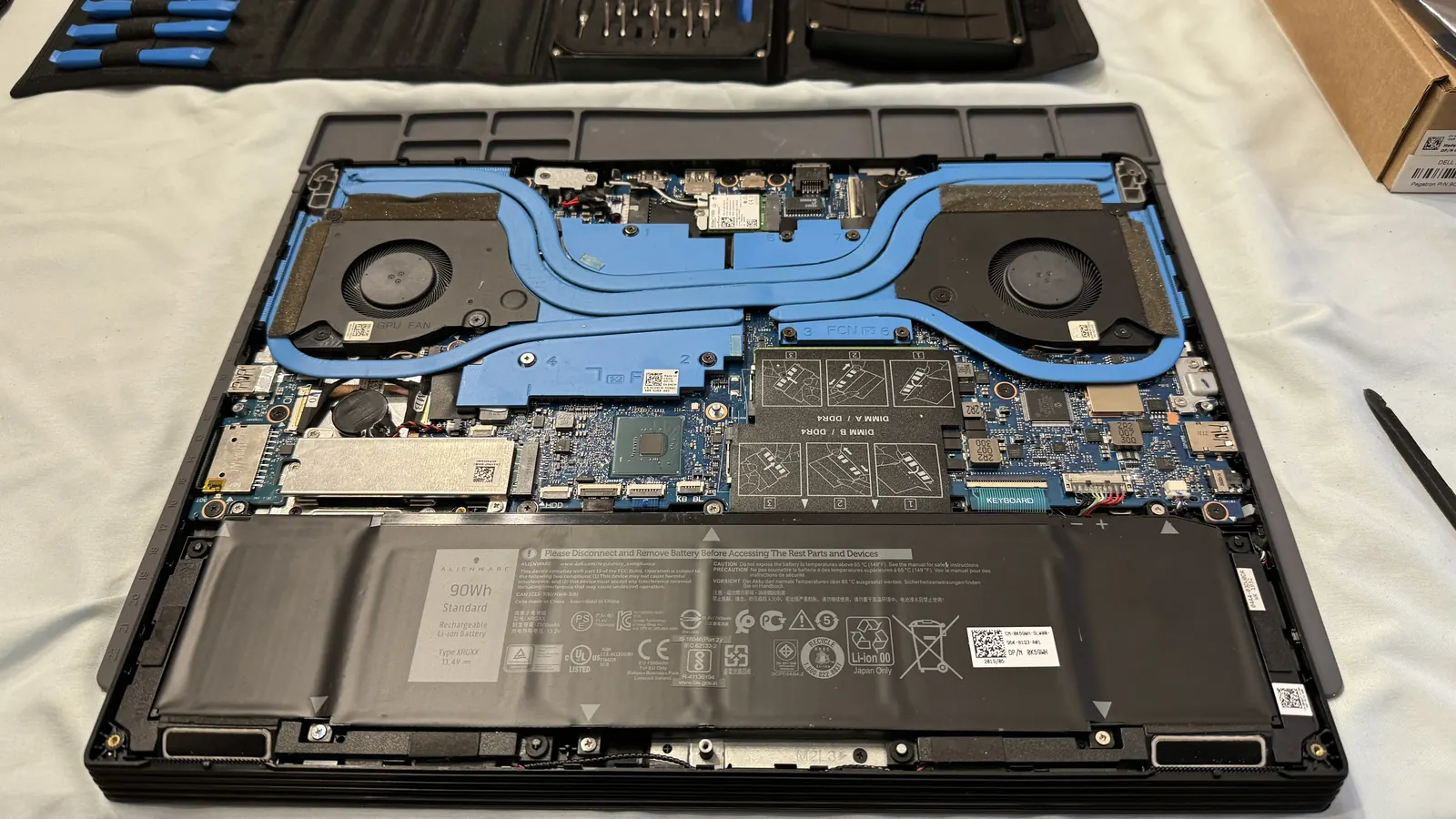
The processor (CPU) and graphics chip (GPU) produce the heat. A thin layer of thermal paste sits between each chip and the metal cooler on top of it. Chips and coolers both look flat, but at a microscopic level they're rough. The paste fills those tiny gaps so heat can move across. Some parts use soft thermal pads instead, and some high-end gaming laptops use liquid metal.
Copper heat pipes carry heat away from the chips. Inside each pipe is a small amount of liquid that turns to vapor at the hot end, travels to the cool end, turns back to liquid and flows back. Some laptops use one wide, flat vapor chamber instead.
At the end of the heat pipes is a block of thin metal fins, called a heatsink or radiator, that spreads the heat out over a large surface.
One or two fans pull cool air in, usually from the bottom, push it through the fins, and blow hot air out the side or back.
When any one of those four parts stops doing its job, heat backs up. The laptop then protects itself by slowing the processor down, which is called thermal throttling, and if that isn't enough, it shuts off.
Signs Your Laptop Is Overheating
- The bottom or keyboard is too hot to touch comfortably
- The fan runs loud even when you're barely doing anything
- It gets slower and stutters the longer it's on
- Games or video editing get choppy as it warms up
- It shuts off on its own, especially under load
- The battery drains faster than it used to
- On a Mac, a process called kernel_task uses a lot of CPU in Activity Monitor (on Intel Macs, this is macOS deliberately slowing things down to manage heat)
The shutdowns matter most. A laptop that turns itself off is protecting itself from damage, and it's telling you something needs attention.
What's a Normal Temperature?
This varies by laptop, but as a general guide for the processor:
| What you're doing | Typical range |
|---|---|
| Idle or light browsing | Roughly 35 to 55°C |
| Video calls and everyday multitasking | Roughly 50 to 75°C |
| Gaming, rendering, exporting video | Roughly 70 to 95°C |
Many modern laptop processors are designed to run in the 90s under heavy load. That alone isn't a problem. What's worth paying attention to:
- High temperatures when the laptop is barely doing anything
- Temperatures rising more than they used to for the same task
- Performance dropping as it heats up
- Shutdowns
How to check your temperatures
- Windows: Task Manager shows GPU temperature on the Performance tab. For CPU temperature, free tools like HWiNFO or Core Temp show detailed readings.
- Mac: macOS doesn't show temperatures directly. Open Activity Monitor and sort by % CPU to see what's working the processor hard. Third-party apps can show temperature readings.
- Gaming laptops: most come with the maker's own software, like ASUS Armoury Crate, Lenovo Vantage, MSI Center or Alienware Command Center, which shows temperatures and fan speeds.
What Causes Laptop Overheating
By far the most common cause. Fans pull dust in with the air, and it packs into a felt-like mat between the fan and the cooling fins. You can't see it through the vents, and it blocks most of the airflow. Homes with pets and laptops used on beds and carpets clog fastest.
After a few years of heating up and cooling down, thermal paste dries out and cracks. It stops moving heat from the chip to the cooler, so the chip runs hot even if the fan is spotless. Laptops that run hot every day dry their paste out faster.
Grinding, rattling, ticking or a fan that speeds up and slows down constantly. A worn bearing means the fan can't spin as fast as it needs to. Sometimes a fan stops entirely.
Beds, couches, blankets, pillows and laps cover the intake vents on the bottom. Even a perfectly clean laptop overheats when it can't pull in air.
A stuck background process, a browser with dozens of tabs, a runaway update, or malware can keep the processor maxed out. Some malware uses your computer to mine cryptocurrency, which pins the CPU or GPU at full load all the time.
A "maximum performance" power mode keeps the processor running hard. Outdated BIOS, chipset or graphics drivers can also manage power and fans poorly. Manufacturers sometimes release updates specifically to fix heat and fan behavior.
Old batteries can run warm, especially while charging. A battery that's swelling is a safety problem, not just a heat problem. If the trackpad is lifting, the case is bulging or the laptop rocks on a flat table, stop using it and don't charge it.
Different Laptops, Different Heat Problems
Thin and light laptops
Ultrabooks pack powerful chips into very little space with small fans. They're designed to throttle more readily to stay quiet and cool. A little throttling on a thin laptop under heavy load is normal. A thin laptop that throttles during web browsing isn't.
MacBooks
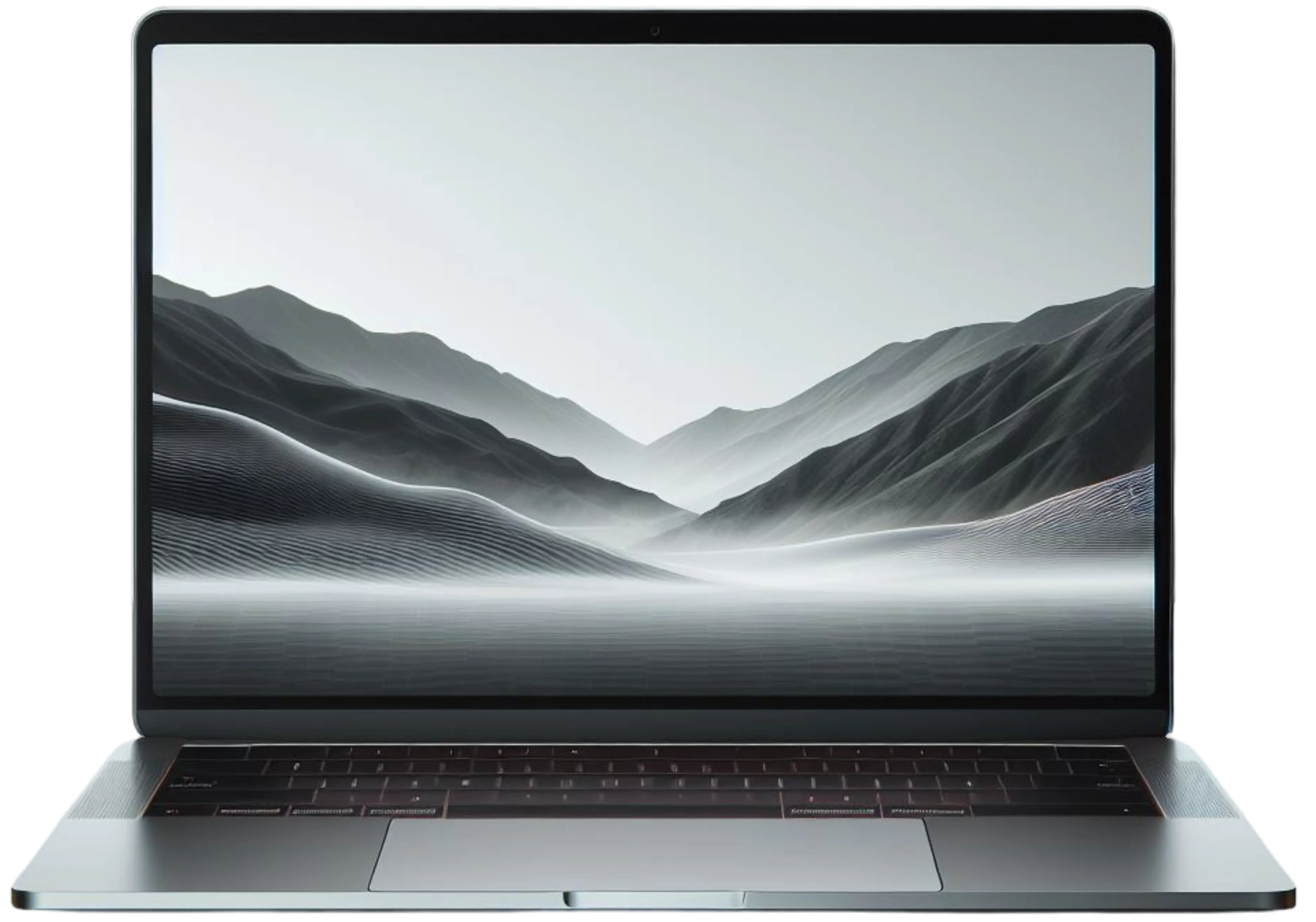
Apple silicon MacBook Airs have no fan at all. They cool passively and slow down under sustained heavy load by design. They don't overheat in the traditional sense, but they can get slow during long exports or gaming. MacBook Pros with Apple silicon have fans and run much cooler than older models. Intel MacBook Pros were known for running hot, and after a few years they often benefit a lot from a cleaning and fresh thermal paste.
Gaming laptops
Gaming laptops run hot by design. They push a powerful CPU and GPU hard in a small space. They're also the laptops that suffer most from dust and dried paste, because they move so much air and run so hot. Losing frame rates as a gaming laptop heats up is one of the clearest signs it needs a thermal service. Some high-end models use liquid metal instead of paste on the CPU, which conducts heat better but needs careful handling when it's serviced, because it can short components if it spreads.
Business laptops
Laptops that live on a desk plugged into a dock and external monitors all day can run warm constantly, especially with the lid closed, which can block some vents. Keeping the lid open or using a stand helps.
Quick Fixes to Try at Home
- Use it on a hard, flat surface
A desk or table lets air reach the vents. A laptop stand, or something that lifts the back an inch, helps even more.
- Check what's running
Open Task Manager on Windows or Activity Monitor on a Mac and sort by CPU. Close anything using a lot that you don't need. If something you don't recognize is using a lot of CPU all the time, scan for malware.
- Change the power mode
On Windows, try Balanced instead of Best Performance. On gaming laptops, the maker's software usually has a quiet or balanced mode.
- Blow out the vents
With the laptop off and unplugged, use compressed air in short bursts at an angle into the intake and exhaust vents. Don't let the air spin the fan wildly; it can damage the bearing. If you can see the fan through the vent, hold it still with a toothpick.
- Run every update
Windows or macOS updates, plus BIOS, chipset and graphics driver updates from the laptop maker. These sometimes improve how fans and power are managed.
- Try a cooling pad
A cooling pad lifts the laptop and pushes extra air at the intake. It won't fix a clogged fan or dried paste, but it helps a healthy laptop run cooler.
When It Needs a Professional Service
Compressed air only reaches the outer edge of the cooling fins. The packed dust mat usually sits right between the fan and the fins, where you can only reach it by opening the laptop. And there's no way to replace dried thermal paste without taking the cooler off.
- Warm but not shutting down
- Loud only during heavy use
- It's been used on beds or couches a lot
- Less than a couple of years old
- Just started after a software change
- Shuts off on its own
- Fan grinds, rattles or doesn't spin
- Still hot after cleaning the vents
- A few years old and never been opened
- Gaming laptop losing frame rates as it heats up
- Battery is swelling
What a Thermal Service Involves
- Full teardown and cleaning
We open the laptop and remove the cooling assembly. The fans, heat pipes and fins all get cleaned properly, including the packed dust between the fan and the fins that you can't reach from outside.
- New thermal paste and pads
The old paste comes off the CPU and GPU, and fresh paste goes on. Thermal pads on other components get checked and replaced if they've dried out or torn.
- Fan check or replacement
If a fan is worn, noisy or not reaching full speed, we replace it.
- Battery check
Heat and batteries don't mix. We check for swelling while it's open.
- Testing under load
We run the laptop hard and watch temperatures and clock speeds to make sure it holds up under real use, not just at idle.
On most laptops, a thermal service brings temperatures down noticeably and stops the laptop from throttling itself. On gaming laptops, it often brings back performance people thought they'd lost for good.
Laptop still running hot?Cleaning, new thermal paste and fan replacements, done in-house at our Vancouver and Portland stores.How to Keep It From Happening Again
- Use it on hard surfaces, or use a stand or cooling pad
- Blow out the vents every few months, more often with pets
- Keep it updated, including BIOS and drivers
- Watch for early signs like a fan that's louder than it used to be
- Get it serviced every few years, sooner for gaming laptops or dusty homes
Frequently Asked Questions
Is it bad if my laptop gets hot?
Warm is normal, and many processors are designed to run in the 90s °C under heavy load. Too hot to touch during light use, a fan that never quiets down, slowing down as it heats up, or random shutdowns are not normal.
Why does my laptop overheat when I'm not doing anything?
Usually a background process, malware, or a clogged cooling system. Check Task Manager or Activity Monitor for anything using a lot of CPU. If nothing stands out and it's still hot at idle, the fan or thermal paste likely needs attention.
How often should a laptop be cleaned inside?
It depends on where it's used. Laptops in homes with pets, or used on beds and carpets, collect dust faster. If yours is a few years old and has never been opened, it's probably due. Gaming laptops benefit from more frequent service.
Does replacing thermal paste really help?
Yes, if the old paste has dried out. Fresh paste lets heat move from the chip to the cooler properly, which lowers temperatures and stops the laptop from slowing itself down.
Can overheating damage my laptop permanently?
It can. Laptops protect themselves by slowing down and shutting off, but running hot for long periods wears out the battery faster and stresses the board and other parts. It's worth fixing early.
Why does my MacBook Air get slow when it's working hard?
Apple silicon MacBook Airs have no fan. They slow down under long, heavy workloads by design to stay cool. That's normal. If it's slow during light use, something else is going on.
Do cooling pads work?
They help, mostly by lifting the laptop and giving the intake vents more air. They won't fix a clogged fan or dried thermal paste.
Can I clean the inside of my laptop myself?
Blowing out the vents is safe. Opening the laptop to clean the fan and replace thermal paste is doable on some models, but it's easy to damage ribbon cables, tear thermal pads, or mishandle liquid metal on gaming laptops. If you're not comfortable with it, have it serviced.


